
This blog contains Google Colab Introduction and tells why it is important. In today’s technology-driven world, programming, artificial intelligence (AI), machine learning (ML), and data analytics are becoming essential skills for students, developers, researchers, and businesses.
However, setting up a programming environment, installing libraries, managing dependencies, and purchasing powerful computer hardware can be challenging and expensive.
This is where Google Colab (Google Colaboratory) comes into the picture.
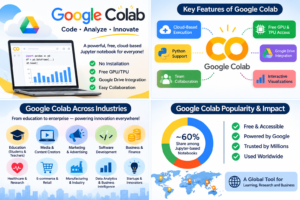
Google Colab is a cloud-based programming platform developed by Google that allows users to write and execute Python code directly from a web browser without installing complicated software on their computers.
It is based on Jupyter Notebook and provides access to cloud computing resources, including CPUs, GPUs, and TPUs, depending on availability and subscription eligibility.
Whether you are learning Python, developing machine learning models, experimenting with generative AI, analyzing business data, or automating repetitive tasks, Google Colab provides an accessible environment to get started.
One of its biggest advantages is that users can start with a free plan and upgrade when they need additional computing resources.
In this comprehensive guide, we will explore what Google Colab is, how it works, its important features, how to create workflows, how to build nested workflows, business applications, pricing options, advantages, disadvantages, and alternatives.
What Is Google Colab?
Google Colab, also known as Google Colaboratory, is a cloud-based Jupyter Notebook service that allows users to write, execute, test, and share Python programs online.
Unlike traditional programming environments that require local installation, Google Colab runs code on Google’s hosted runtime environment.
Users only need:
- A Google account.
- An internet connection.
- A supported web browser.
Once logged in, users can create a notebook and start writing Python code.
Google Colab allows users to combine different elements in one document, including:
- Executable Python code.
- Text and documentation.
- Mathematical equations.
- Charts and graphs.
- Images and visualizations.
- Interactive outputs.
This makes it useful for both programming and documenting technical projects.
Example:
Suppose a student wants to learn Python programming but does not have Python installed on their laptop.
Instead of downloading Python, configuring an IDE, and installing multiple packages, the student can open Google Colab, create a notebook, and execute Python code immediately.
For example:
print("Welcome to Google Colab!")

a = 10
b = 20

print("Total:", a + b)
Output:
Welcome to Google Colab!
Total: 30
The code executes in the cloud, and the result appears directly below the code cell.
Official Website: https://colab.research.google.com/
What Can Google Colab Do?
Google Colab is more than an online Python editor. It provides an environment for developing, testing, analyzing, and experimenting with different types of technical projects.
Here are some of its most important applications.
Python Programming
Beginners can learn Python without installing programming software.
You can:
- Write Python programs.
- Execute code line by line.
- Debug programming errors.
- Install Python libraries.
- Practice programming concepts.
- Build small applications and scripts.
Machine Learning
Google Colab is widely used for machine learning experiments.
Developers can use popular libraries such as:
- Scikit-learn.
- TensorFlow.
- PyTorch.
- Keras.
- XGBoost.
For example, you can develop a machine learning model that predicts house prices based on historical property data.
Artificial Intelligence and Deep Learning
Colab provides access to GPU and TPU accelerators, subject to availability and usage restrictions.
This makes it useful for:
- Neural network experiments.
- Image classification.
- Natural language processing.
- Deep learning research.
- Generative AI experiments.
- Computer vision projects.
Data Analysis and Visualization
Users can upload CSV, Excel, and other supported datasets and analyze them using Python libraries.
Commonly used libraries include:
- Pandas.
- NumPy.
- Matplotlib.
- Seaborn.
- Plotly.
For example, a business analyst can upload monthly sales data and generate charts to understand revenue trends.
Web Scraping and Data Collection
Google Colab can execute Python scripts that collect publicly accessible web data or interact with APIs.
Libraries such as Requests and BeautifulSoup can help automate data collection.
Users should always respect website terms, API restrictions, and applicable privacy laws.
Generative AI Experiments
Developers and creators can use Colab to experiment with:
- Large language models (LLMs).
- Text generation.
- Image processing.
- Speech recognition.
- AI-powered automation.
- Model fine-tuning experiments.
Automation and Scripting
Google Colab can execute Python scripts for repetitive tasks.
Examples include:
- Cleaning Excel datasets.
- Converting file formats.
- Generating reports.
- Processing multiple images.
- Analyzing large collections of documents.
- Calling external APIs.
However, Colab is primarily an interactive notebook environment, not a dedicated always-on automation or production scheduling platform.
How Does Google Colab Work?
Google Colab works through a cloud-based execution model.
When you create a notebook and execute code, your browser communicates with a remote runtime environment hosted by Google.
The runtime executes your Python instructions and sends the results back to your notebook.
Here is how the process works.
Step 1: Open Google Colab
Visit:
https://colab.research.google.com/
Sign in using your Google account.
Step 2: Create a Notebook
Click on New Notebook.
Google Colab creates a new notebook containing an empty code cell.
Step 3: Write Python Code
Enter your Python code into the code cell.
Example:
import pandas as pd

data = {
    "Product": ["Laptop", "Mobile", "Tablet"],
    "Sales": [50000, 30000, 20000]
}

df = pd.DataFrame(data)

print(df)
Step 4: Execute the Code
Click the play button beside the code cell or press:
Shift + Enter
Google Colab sends the code to its connected runtime.
The output appears below the cell.
Step 5: Connect Google Drive
You can connect Google Drive to access and save project files.
Example:
from google.colab import drive

drive.mount('/content/drive')
After authorization, your notebook can access permitted files stored in Google Drive.
Step 6: Use GPU or TPU
For supported projects, you can change the runtime hardware accelerator.
Navigate to:
Runtime → Change runtime type → Hardware accelerator
Choose an available GPU or TPU when appropriate.
Remember that accelerator availability depends on your account, plan, and current resource limits.
Notebooks can be stored in Google Drive and shared with other users.
Depending on the permissions you grant, others can view, comment on, or edit your notebook.
This makes Google Colab useful for collaborative learning and development.
Key Google Colab Features
Google Colab offers several features that make it popular among programmers, data scientists, researchers, and AI developers.
Cloud-Based Execution
You can run Python programs using Google’s cloud infrastructure instead of relying entirely on your computer’s processing power.
Free GPU and TPU Access
Google Colab provides limited access to GPU and TPU computing resources through its free offering.
This is particularly helpful for students and beginners experimenting with machine learning.
Jupyter Notebook Support
Colab uses the familiar Jupyter Notebook format.
Users can organize their projects into code cells and Markdown cells, making their work easier to understand.
Google Drive Integration
Users can store notebooks and connect files from Google Drive.
This simplifies project storage, file management, and collaboration.
Python Library Installation
You can install additional Python libraries directly inside notebook cells.
Example:
!pip install pandas numpy matplotlibInteractive Data Visualization
Google Colab supports charts, graphs, tables, and interactive visualizations.
This is useful for analyzing datasets and presenting findings.
Team Collaboration
Users can share notebooks with team members using Google Drive sharing permissions.
AI Assistance with Gemini
Google is introducing deeper AI capabilities into Colab.
Depending on eligibility and availability, users can access AI assistance for:
- Generating Python code.
- Explaining programming concepts.
- Debugging errors.
- Transforming existing code.
- Analyzing datasets.
- Creating data science workflows.
No Local Installation Required
One of Colab’s biggest benefits is that users can start coding without installing Python, Jupyter, or a complete development environment locally.
Multiple Runtime Options
Depending on availability, users can work with different computing configurations, including standard CPU, GPU, and TPU runtimes.
How to Create a Workflow with Google Colab — Step by Step
A workflow in Google Colab is a sequence of programming steps that work together to complete a particular task.
For example, consider a business that wants to analyze monthly sales data automatically whenever a new dataset is provided.
Instead of performing every calculation manually, a Python notebook can execute the complete process.
Let’s understand how to create a simple workflow.
Example: Monthly Sales Analysis Workflow
<PRIVATE_PERSON> A business analyst wants to:
- Upload a sales dataset.
- Read the dataset.
- Clean missing values.
- Calculate total sales.
- Identify the best-selling product.
- Generate a visualization.
- Export the final report.
Step 1: Create a New Notebook
Open Google Colab and create a new notebook.
Give it a meaningful name, such as:
Monthly_Sales_Analysis.ipynb
Step 2: Import Required Libraries
import pandas as pd
import matplotlib.pyplot as plt
These libraries will help process and visualize the data.
Step 3: Create or Upload a Dataset
For demonstration, create a sample dataset.
data = {
    "Product": ["Laptop", "Mobile", "Tablet", "Laptop", "Mobile"],
    "Sales": [50000, 30000, 20000, 60000, 40000]
}

df = pd.DataFrame(data)

print(df)
Step 4: Clean the Dataset
df = df.dropna()This removes rows containing missing values.
For real-world datasets, data cleaning should be designed according to the meaning of each field rather than blindly deleting all incomplete rows.
Step 5: Calculate Total Sales
total_sales = df["Sales"].sum()

print("Total Sales:", total_sales)
Step 6: Find the Best-Selling Product
product_sales = df.groupby("Product")["Sales"].sum()

print(product_sales)

print("Best Selling Product:", product_sales.idxmax())
Step 7: Generate a Chart
product_sales.plot(kind="bar")

plt.title("Product Sales Analysis")
plt.xlabel("Product")
plt.ylabel("Sales")

plt.show()
Step 8: Export the Results
product_sales.to_csv(
    "sales_report.csv"
)
The generated file can then be downloaded or saved to Google Drive.
Result: You have created a basic sales analysis workflow that reads data, cleans it, calculates business metrics, generates a chart, and exports the result.
How to Create Nested Workflows in Google Colab
Nested workflows are useful when a project contains multiple smaller workflows that must work together.
Instead of writing hundreds of lines of code in one notebook, you can divide the project into smaller, reusable components.
A nested workflow generally contains:
- Main workflow.
- Sub-workflows.
- Individual functions.
- Data processing tasks.
- Output generation tasks.
Important: Google Colab does not provide a dedicated drag-and-drop nested workflow designer. Nested workflows can be implemented using Python functions, imported modules, reusable notebooks, and orchestration libraries.
Example: Nested Workflow for Business Reporting
Imagine a company wants to generate a monthly business report.
The main workflow may contain three sub-workflows:
Main Workflow: Monthly Business Report
- Data Collection Workflow.
- Collect sales data.
- Collect customer data.
- Validate files.
- Data Processing Workflow.
- Clean data.
- Calculate revenue.
- Analyze customer behavior.
- Report Generation Workflow.
- Generate charts.
- Create an Excel report.
- Export final results.
Step 1: Create Individual Functions
def collect_data():
    print("Collecting business data")

def process_data():
    print("Processing business data")

def generate_report():
    print("Generating business report")
Step 2: Create the Main Workflow
def monthly_business_workflow():

    collect_data()

    process_data()

    generate_report()

    print("Monthly workflow completed")
Step 3: Execute the Main Workflow
monthly_business_workflow()Output:
Collecting business data
Processing business data
Generating business report
Monthly workflow completed
Step 4: Build More Complex Nested Workflows
You can create sub-functions inside individual workflow components.
def data_processing_workflow():

    def clean_data():
        print("Cleaning data")

    def analyze_data():
        print("Analyzing data")

    clean_data()
    analyze_data()


def main_workflow():

    collect_data()

    data_processing_workflow()

    generate_report()


main_workflow()
This approach makes the project modular, reusable, and easier to maintain.
When Should You Use Nested Workflows?
Nested workflows are particularly useful for:
- Large data science projects.
- Machine learning pipelines.
- AI model development.
- Business reporting.
- Data transformation.
- Document processing.
- Multi-step automation.
Advanced tip: For executing separate notebooks as part of a larger workflow, developers can explore tools such as Papermill and nbclient. For production-grade scheduling and orchestration, consider Apache Airflow, Prefect, or cloud-based workflow services.
How Businesses Can Use Google Colab
Google Colab is not limited to students and programmers. Businesses can also use it for experimentation, data analysis, prototyping, and AI development.
Here are some practical business applications.
Business Intelligence and Data Analytics
Businesses can analyze sales, revenue, customer behavior, and operational performance using Python.
Customer Segmentation
Marketing teams can use machine learning algorithms to group customers based on purchasing behavior, demographics, or engagement data.
Sales Forecasting
Companies can experiment with machine learning models to predict future sales using historical information.
AI-Powered Document Processing
Businesses can develop prototypes that extract information from invoices, PDFs, forms, and other business documents.
Marketing Analytics
Digital marketing teams can analyze campaign performance, website traffic, customer engagement, and advertising data.
Fraud Detection Experiments
Financial and e-commerce businesses can experiment with machine learning models to identify unusual transaction patterns.
Product Recommendation Systems
E-commerce businesses can develop recommendation models that suggest products based on customer interests and purchasing history.
Business Process Automation
Companies can create Python scripts to automate repetitive data-processing tasks and generate reports.
Business consideration: Google Colab is excellent for experimentation and development, but sensitive business information should be handled according to organizational security policies. Production workloads generally require controlled infrastructure, managed access, monitoring, and reliable execution rather than relying on consumer Colab sessions.
Google Colab Use Cases for Different Users
Google Colab supports several user groups.
| User Type | Practical Use Cases |
|---|---|
| Students | Learn Python, practice coding, complete data science projects, and experiment with AI. |
| Teachers | Demonstrate Python programs, share interactive lessons, and teach machine learning. |
| Content Creators | Experiment with AI image processing, audio analysis, video processing, and content automation. |
| Digital Marketers | Analyze campaign performance, customer data, SEO datasets, and marketing reports. |
| Developers | Build Python prototypes, test APIs, experiment with machine learning, and debug code. |
| Businesses | Develop analytical models, automate reports, prototype AI solutions, and analyze operational data. |
Google Colab for Students
Students can use Colab to learn Python, practice mathematics, understand machine learning, and complete academic projects without purchasing expensive hardware.
Google Colab for Teachers
Teachers can create interactive programming lessons and share notebooks with students.
Students can execute code and immediately understand the results.
Google Colab for Content Creators
Creators can experiment with AI models, image manipulation, audio processing, and data-driven content generation.
Google Colab for Digital Marketers
Marketers can use Python to analyze keyword datasets, website performance, campaign results, and customer engagement.
Google Colab for Developers
Developers can build prototypes, test Python libraries, experiment with APIs, and explore AI models.
Google Colab for Businesses
Businesses can use Colab for proof-of-concept development, data analysis, predictive modeling, and internal technical experimentation.
Google Colab Free vs Premium Plans
One of the biggest reasons behind Google Colab’s popularity is its free access.
However, users who need additional computing resources can consider paid options.
Google offers free access alongside paid Colab subscriptions and other Google AI subscription benefits, depending on country and eligibility.
The main options include:
Google Colab Free
The free version is suitable for beginners, students, and people learning Python.
Features:
- Free notebook environment.
- Cloud-based Python execution.
- Google Drive integration.
- Limited access to GPUs and TPUs.
- Basic notebook sharing.
- Standard computing resources.
Limitations:
- Dynamic resource restrictions.
- Limited GPU availability.
- Runtime disconnections.
- Limited memory and computing resources.
- No guarantee of continuous execution.
Google Colab Pro
Colab Pro is designed for users who need more computing resources than the free version provides.
Potential benefits include:
- More compute units.
- Access to more powerful accelerators, subject to availability.
- Higher-memory runtime options.
- Improved resource availability.
- Additional AI-assisted productivity features where eligible.
Google Colab Pro+
Colab Pro+ is intended for users with more demanding workloads.
Potential benefits include:
- More monthly compute units.
- Access to higher-performance computing resources.
- Higher-memory machines.
- Background execution for supported workloads.
- Longer continuous execution, subject to compute availability and balance.
Google AI Subscription Benefits
Google has also expanded access to premium Colab benefits through eligible Google AI subscription plans.
The precise benefits depend on the subscription, location, and rollout eligibility.
Free vs Paid Comparison
| Feature | Free | Pro | Pro+ |
|---|---|---|---|
| Cloud notebooks | Yes | Yes | Yes |
| Python execution | Yes | Yes | Yes |
| GPU access | Limited | More access | More access |
| TPU access | Limited | Subject to availability | Subject to availability |
| Compute units | Free-tier limits | Paid allocation | Higher allocation |
| High-memory runtime | Limited | More access | More access |
| Background execution | Not generally available | Limited | Supported, up to 24 hours |
| Best for | Beginners | Regular users | Intensive experiments |
Which plan should you choose?
- Choose Free if you are learning Python or testing small projects.
- Choose Pro if you regularly work with machine learning and need additional computing resources.
- Choose Pro+ if you frequently run intensive experiments and need supported background execution.
Pricing note: Google Colab pricing, compute-unit allocations, hardware availability, and subscription benefits can change. Check the official pricing page before purchasing rather than relying on outdated prices quoted in third-party articles.
Official resource: https://colab.research.google.com/signup
Advantages of Google Colab
Google Colab offers several benefits that make it a popular choice.
No Installation Required
You can start programming directly from a browser without installing Python or configuring a development environment.
Free Access
The free plan makes programming and experimentation accessible to beginners and students.
Cloud Computing Resources
Users can access CPUs, GPUs, and TPUs depending on resource availability.
Easy Collaboration
Notebooks can be shared through Google Drive.
Supports Popular Libraries
Colab supports popular Python libraries for data science, AI, machine learning, and visualization.
Beginner-Friendly
Its interface is relatively simple and suitable for people learning programming.
Useful for AI and Machine Learning
It provides an accessible environment for experimenting with machine learning and deep learning projects.
Easy Project Sharing
Users can share notebook links instead of sending complete programming environments.
Disadvantages of Google Colab
Although Google Colab offers many benefits, it also has some limitations.
Runtime Restrictions
Free sessions can disconnect or terminate, and usage limits can change.
Limited Free GPU Availability
GPU resources are not guaranteed and may not always be available when required.
Temporary Runtime Storage
Files stored only in the runtime can disappear when the runtime is terminated or reset.
Internet Dependency
Since Colab operates through the cloud, a reliable internet connection is important.
Not Ideal for Production Applications
Colab is primarily designed for interactive development, experimentation, and education rather than running critical production services.
Limited Control Over Hardware
Users cannot always choose their preferred GPU, memory configuration, or computing environment.
Session Interruptions
Long-running experiments may be interrupted because of runtime and resource restrictions.
Security and Privacy Considerations
Businesses should carefully evaluate data sensitivity, access permissions, and compliance requirements before uploading confidential information.
Best Google Colab Alternatives
Although Google Colab is an excellent cloud-based notebook platform, several alternatives are available.
Depending on your requirements, you may prefer a platform that provides more control over hardware, longer execution sessions, team collaboration, or managed machine learning infrastructure.
Kaggle Notebooks
Best for: Students, data scientists, and machine learning beginners.
<PRIVATE_URL>
Kaggle Notebooks provides a cloud-based environment for writing and executing Python code.
Its major advantage is its integration with Kaggle datasets and machine learning competitions.
Key features:
- Free notebook environment.
- Dataset integration.
- Machine learning support.
- Community learning resources.
- GPU access subject to quotas and availability.
Jupyter Notebook
Best for: Python developers and researchers.
Jupyter Notebook is an open-source notebook environment that allows users to write and execute code interactively.
Unlike hosted Colab, it can be installed and managed locally or hosted on your own infrastructure.
Key features:
- Open-source platform.
- Interactive notebooks.
- Multiple programming language support through kernels.
- Local environment control.
- Extensive extensions and ecosystem.
JupyterLab
Best for: Advanced Python developers and data scientists.
JupyterLab offers an advanced interface for working with notebooks, terminals, files, and code editors.
It is suitable for people who need more control over their development environment.
Deepnote
Best for: Data teams and collaborative analytics.
Deepnote provides a collaborative notebook environment designed for data science and analytics teams.
Key features:
- Collaborative notebooks.
- Data integration.
- Interactive analysis.
- Team-oriented workflows.
- Cloud-based execution.
Amazon SageMaker
Best for: Businesses and enterprise machine learning teams.
https://aws.amazon.com/sagemaker/
Amazon SageMaker provides managed cloud infrastructure for developing, training, deploying, and managing machine learning models.
It is more suitable for organizations building scalable machine learning solutions.
Microsoft Fabric Notebooks
Best for: Organizations using Microsoft’s data and analytics ecosystem.
https://www.microsoft.com/en-us/microsoft-fabric
Microsoft Fabric provides an integrated analytics platform with notebook capabilities, data engineering, and business intelligence features.
Google Colab vs Alternatives
| Platform | Best For | Main Advantage |
|---|---|---|
| Google Colab | Beginners and AI experiments | Easy cloud access |
| Kaggle Notebooks | Data science learners | Dataset integration |
| Jupyter Notebook | Developers | Local control |
| JupyterLab | Advanced developers | Flexible environment |
| Deepnote | Data teams | Collaboration |
| Amazon SageMaker | Enterprises | Managed ML infrastructure |
| Microsoft Fabric | Enterprise analytics | Integrated data platform |
Frequently Asked Questions (FAQs)
Q1. Is Google Colab completely free?
Google Colab provides a free version that allows users to create notebooks and execute Python programs. However, computing resources, GPU access, memory, and runtime duration are limited.
Paid subscriptions are available for users who require additional resources.
Q2. Do I need to install Python to use Google Colab?
No. Google Colab provides a hosted Python environment, so you can write and execute Python code directly in your browser.
Q3. Can I use Google Colab without a Google account?
A Google account is generally required to create and save your own Colab notebooks and access the full service.
Q4. Does Google Colab provide free GPU access?
Yes. Google Colab provides limited access to GPUs in its free tier. However, GPU availability is not guaranteed and depends on resource availability and usage restrictions.
Q5. Can I run machine learning projects in Google Colab?
Yes. Google Colab supports popular machine learning libraries such as TensorFlow, PyTorch, Scikit-learn, and Keras.
Q6. Is Google Colab suitable for beginners?
Yes. It is particularly useful for beginners because it does not require complicated software installation or local environment configuration.
Q7. Can I use Google Colab for business purposes?
Yes. Businesses can use Colab for data analysis, machine learning experiments, AI prototyping, and automation scripts. However, production deployment and sensitive business data require additional infrastructure and security considerations.
Q8. Can Google Colab access Google Drive?
Yes. Users can mount Google Drive and access permitted files from their notebooks.
Q9. Can Google Colab run continuously?
No. Consumer Colab sessions have runtime and resource restrictions. Colab Pro+ supports continuous execution for up to 24 hours when sufficient compute units are available and execution remains active.
Q10. What programming language does Google Colab support?
Python is the primary language used in Google Colab. Other languages can be used through supported notebook kernels or runtime configurations, but compatibility varies.
Q11. Can I use Google Colab on a mobile phone?
Yes. Colab can be accessed through a mobile browser, although a desktop or laptop generally provides a better coding experience.
Q12. What is the difference between Google Colab and Jupyter Notebook?
Jupyter Notebook is an open-source notebook application that can run locally or on a server. Google Colab is a hosted Jupyter Notebook service that provides managed cloud runtimes and Google Drive integration.
Q13. Is Google Colab good for AI development?
Yes. Colab is useful for AI experimentation, machine learning, deep learning, and prototyping. However, large-scale training and production deployment may require dedicated cloud infrastructure.
Q14. Can I save Google Colab notebooks?
Yes. Colab notebooks can be saved in Google Drive and downloaded in Jupyter Notebook format.
Q15. What are the best alternatives to Google Colab?
Some popular alternatives include Kaggle Notebooks, Jupyter Notebook, JupyterLab, Deepnote, Amazon SageMaker, and Microsoft Fabric.
Final Verdict: Is Google Colab Worth Using?
Google Colab is one of the most accessible platforms for learning Python, experimenting with artificial intelligence, performing data analysis, and developing machine learning projects.
Its browser-based environment eliminates much of the complexity associated with traditional programming setups.
The availability of free computing resources, GPU and TPU acceleration, Google Drive integration, and collaborative notebooks makes it an attractive option for students, teachers, developers, researchers, content creators, and businesses.
However, it is important to understand that Google Colab is not a replacement for every development or production environment.
Its runtime restrictions, changing resource availability, and limited control over hardware can become challenges for advanced projects.
Our recommendation:
- Beginners should start with the free version.
- Students and teachers can use it for programming education and academic projects.
- Developers can use it for prototyping and testing.
- AI enthusiasts can experiment with machine learning and deep learning.
- Businesses can use it for analytics, automation prototypes, and proof-of-concept development.
- Enterprise teams requiring reliable production workloads should consider managed cloud platforms and dedicated infrastructure.
Overall, Google Colab is an excellent starting point for anyone interested in Python programming, data science, and artificial intelligence.
Its biggest strength is simplicity: you can start coding, analyzing data, and experimenting with AI without investing in expensive hardware or spending hours configuring your development environment.
If you are planning to learn Python or explore machine learning, Google Colab is certainly worth trying.
Suggested Category: Artificial Intelligence / Technology / Programming
Target Audience: Beginners, students, educators, AI developers, data scientists, digital marketers, and business professionals.